# How to set up a character

{% hint style="success" %}
**Note**: Make sure the **Character Animation System** package is imported into your project!
{% endhint %}

## Apply Setup

Add your character to the scene, right-click it, and select **KINEMATION ▸ Setup CAS**:

<figure><img src="https://1519747473-files.gitbook.io/~/files/v0/b/gitbook-x-prod.appspot.com/o/spaces%2FrZsugF4ifwEvaFE7BvLB%2Fuploads%2F62y6qBtnCu56PQIxgEAc%2Fimage.png?alt=media&#x26;token=e90b0a12-2ce2-4edc-aeb4-80e5120f4db9" alt="" width="417"><figcaption></figcaption></figure>

Next, select the **Manual** preset and apply it:

<figure><img src="https://1519747473-files.gitbook.io/~/files/v0/b/gitbook-x-prod.appspot.com/o/spaces%2FrZsugF4ifwEvaFE7BvLB%2Fuploads%2FT2MwO8X0x0v9zt3RUOmI%2Fimage.png?alt=media&#x26;token=fcb95115-9c1f-4924-9e4a-daf548bc09ee" alt="" width="375"><figcaption><p>Click <strong>Apply Preset</strong>.</p></figcaption></figure>

This adds three components to the character:

<figure><img src="https://1519747473-files.gitbook.io/~/files/v0/b/gitbook-x-prod.appspot.com/o/spaces%2FrZsugF4ifwEvaFE7BvLB%2Fuploads%2F1wWsi9oq7L52dlnyVYFi%2Fimage.png?alt=media&#x26;token=eefe5af0-b20c-4a2c-b182-7bf57d9de2d4" alt="" width="434"><figcaption><p>These are main components used in the animation system.</p></figcaption></figure>

{% hint style="success" %}
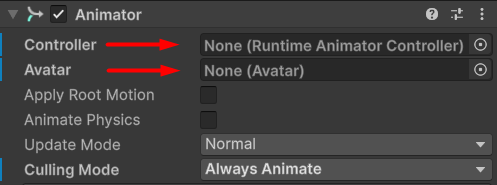
**Note:** Before continuing, assign an **Animator Controller** in the Animator.
{% endhint %}

<figure><img src="https://1519747473-files.gitbook.io/~/files/v0/b/gitbook-x-prod.appspot.com/o/spaces%2FrZsugF4ifwEvaFE7BvLB%2Fuploads%2FYtdrwEvqhem6pbSZnVTm%2Fimage.png?alt=media&#x26;token=17532175-6126-4a0d-b8e7-c84a940a77af" alt="" width="373"><figcaption><p>Assign Animtor Controller.</p></figcaption></figure>

## Create CAS Asset

In the Character Animation Component menu (three dots), select **Create Animation Settings**:

<figure><img src="https://1519747473-files.gitbook.io/~/files/v0/b/gitbook-x-prod.appspot.com/o/spaces%2FrZsugF4ifwEvaFE7BvLB%2Fuploads%2Fusp81EP8Lphnz1XgLNBO%2Fimage.png?alt=media&#x26;token=66ec49bc-b57f-47f5-b721-a79a5a58ed0d" alt="" width="434"><figcaption><p>Select this option.</p></figcaption></figure>

This creates a **ScriptableObject** in the current folder:

<figure><img src="https://1519747473-files.gitbook.io/~/files/v0/b/gitbook-x-prod.appspot.com/o/spaces%2FrZsugF4ifwEvaFE7BvLB%2Fuploads%2FCryxCG15XFqVqkg6dzmU%2Fimage.png?alt=media&#x26;token=4402bebf-688b-440e-9a0e-d38bebf171f1" alt="" width="434"><figcaption><p>Character Animation Settings.</p></figcaption></figure>

*Character Animation Settings* define properties for your weapon, item, or gameplay state (e.g., unarmed). Let's cover each property individually:

1. **Blend Time**: Controls how these settings will be blended. Ease Mode specifies the interpolation function, and Blend In/Out Time is the time in seconds it takes to blend in or out.
2. **Base Pose**: This is your idle standing animation.
3. **Overlay Pose**: This is your weapon or item Animation Clip. Always assign a clip here, as it plays a crucial role in Layered Animation Blending.
4. **Overlay Animator**: If you want your overlay to be more complex, you can create an Animator Controller and assign it here.
5. **Procedural Settings**: These are Animation Modifiers, which will be used to dynamically animate bones. We will cover Procedural Animation in the next chapter!

## Layered animation blending

Make sure to assign the *Base Pose*, *Overlay Pose*, and *Overlay Animator* (optionally). Next, drag & drop your Animation Settings into the character prefab:

<figure><img src="https://1519747473-files.gitbook.io/~/files/v0/b/gitbook-x-prod.appspot.com/o/spaces%2FrZsugF4ifwEvaFE7BvLB%2Fuploads%2FdKVNLkZtVGLmSMtSWR2w%2Fimage.png?alt=media&#x26;token=44165ae5-e975-4548-8021-613880115e34" alt="" width="435"><figcaption><p>Assign your settings here.</p></figcaption></figure>

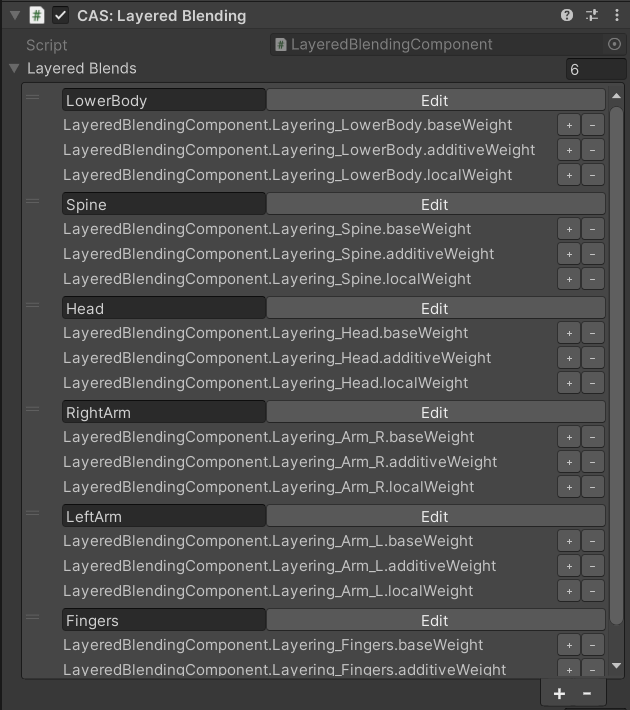
Next, let's see what's inside the **Layered Blending** component:

<figure><img src="https://1519747473-files.gitbook.io/~/files/v0/b/gitbook-x-prod.appspot.com/o/spaces%2FrZsugF4ifwEvaFE7BvLB%2Fuploads%2Fxn3Fhmvy9bxPzyZe2nup%2Fimage.png?alt=media&#x26;token=52c4fb00-3aa0-4300-8027-7ceae46bfac3" alt="" width="473"><figcaption><p>Layered Blending component.</p></figcaption></figure>

Overlays are blended using layers using 3 unique blending parameters:

1. **Base Weight**: This is a blend between Base Pose and Overlay. If set to 1, Ovelray will be applied for this layer, if 0 - Base Pose.
2. **Additive Weight**: This value controls how much of an additive motion to apply. This is useful when we want to animate the Overlay dynamically.
3. **Local Weight**: This value blends the Overlay in the local space (relative to the parent bone). This is mostly useful for fingers and toes, but sometimes we use it for arms too.

These values, however, are not taken directly from the component but from Animation Clips instead.

In CAS, each Animation Clip tells the system how to blend it with the Animator. To better demonstrate this concept, let's adjust the blending for our overlay.

## Curve-based animation blending

Find your Overlay Animation Clip, right-click it, and select **Edit Curve Properties**:

<figure><img src="https://1519747473-files.gitbook.io/~/files/v0/b/gitbook-x-prod.appspot.com/o/spaces%2FrZsugF4ifwEvaFE7BvLB%2Fuploads%2FrOwznL653foQilyFaq2o%2Fimage.png?alt=media&#x26;token=3bc294d1-7291-4415-a711-fc978e8fe81b" alt="" width="289"><figcaption><p>Select this option.</p></figcaption></figure>

Once you select this option, a window with curve properties will be opened:

<figure><img src="https://1519747473-files.gitbook.io/~/files/v0/b/gitbook-x-prod.appspot.com/o/spaces%2FrZsugF4ifwEvaFE7BvLB%2Fuploads%2FmDxXBauHWFFbSOJZBRv6%2Fimage.png?alt=media&#x26;token=72eb7bf8-e8ea-4acf-9482-cab5b947d9c4" alt="" width="440"><figcaption><p>Curve Property Editor.</p></figcaption></figure>

The window lists all animatable parameters, and lets you add custom parameters. To add a custom parameter, select the "**Character Prefab**" and click the "**Add Custom Parameter**" button:

<figure><img src="https://1519747473-files.gitbook.io/~/files/v0/b/gitbook-x-prod.appspot.com/o/spaces%2FrZsugF4ifwEvaFE7BvLB%2Fuploads%2F6WjyyEDYP6noiYiZGUwY%2Fimage.png?alt=media&#x26;token=6e4f7325-4bcf-43d8-9337-511c85215597" alt="" width="286"><figcaption><p>Custom parameters from an example prefab.</p></figcaption></figure>

Press the **"+"** icon for base, additive, and local weights for these parameters:

1. Layering\_LowerBody
2. Layering\_Spine
3. Lowering\_Head
4. Lowering\_Arm\_R
5. Lowering\_Arm\_L
6. Lowering\_Fingers

Now, start the game and adjust the weight sliders! Here are some recommendations for different layers:

1. **Layering\_LowerBody**: Set the "additiveWeight" to 1, and "baseWeight" to 0.4.
2. **Layering\_Fingers**: Set the "localWeight" to 0; usually, we want fingers to be animated by the Overlay.

We will cover the **Layered Blending** system in more detail in the next chapters.

## Blend layers

All blending layers are stored in the **Layered Blend** list (Layered Blending component). Every layer contains bones, which will be affected by the blending. To view and edit those bones, make sure to click the **"Edit"** button:

<figure><img src="https://1519747473-files.gitbook.io/~/files/v0/b/gitbook-x-prod.appspot.com/o/spaces%2FrZsugF4ifwEvaFE7BvLB%2Fuploads%2F2ZB3DSazI48UeU2xZRI3%2Fimage.png?alt=media&#x26;token=c4374f53-8106-4c03-8bf3-9ba2a4c295c7" alt="" width="431"><figcaption><p>Edit to open a bone chain selection.</p></figcaption></figure>

***

At this point, our character setup is complete! In the next tutorial, we will learn how to add procedural animation.